Receipt Printer for POS System: The Complete Guide for 2025
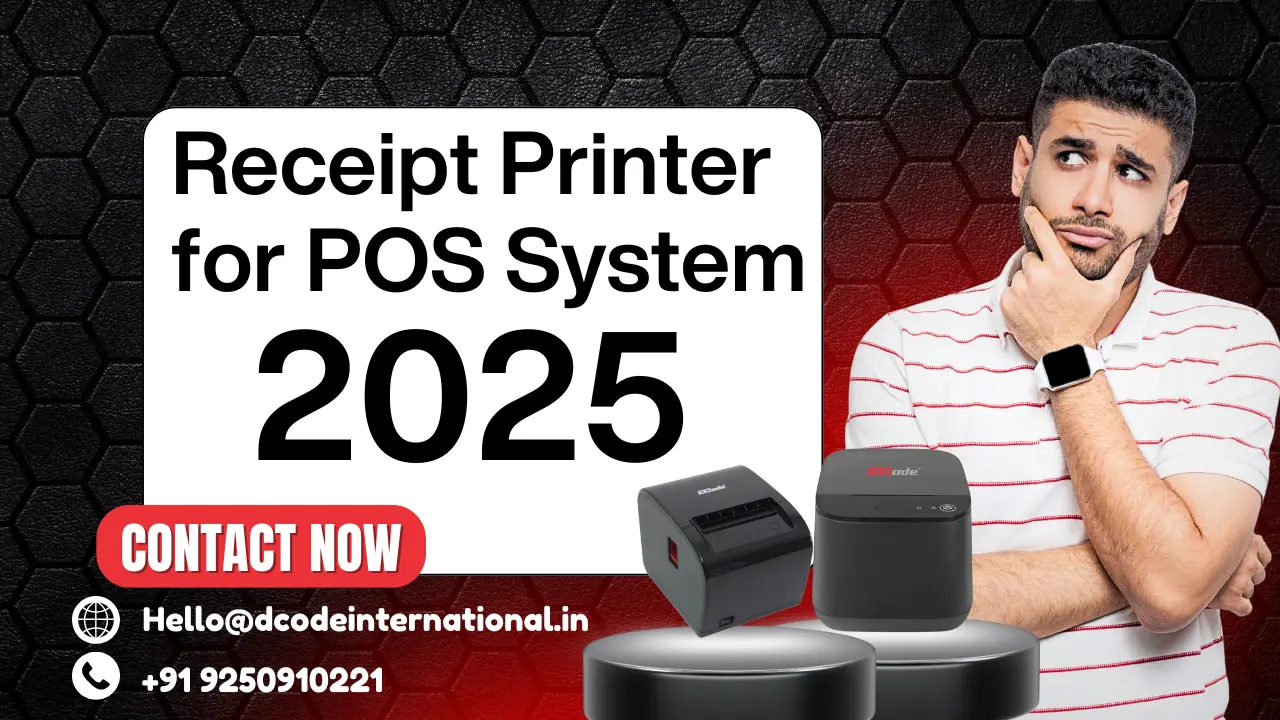
In today’s modern retail and hospitality environment, speed and efficiency can make or break a customer’s experience. One simple device that plays a surprisingly critical role in smooth checkout operations is the receipt printer for POS systems. Whether you’re running a retail shop, a food truck, a pharmacy, or a café, having a reliable receipt printer ensures quick billing, accurate transactions, and a more professional customer experience.
Even in a world where digital receipts are growing, physical receipts remain essential for billing, returns, compliance, warranties, and customer satisfaction.
Understanding What a POS Receipt Printer Is
Basic Definition
A POS receipt printer is a device that connects with your billing system to print receipts, invoices, order tickets, and transaction details. It is a key component of any point-of-sale setup.
How It Works
Most modern receipt printers work using thermal technology, where heat reacts with special paper to produce text and images. This means:
- No ink needed
- Faster printing
- Less maintenance
It’s a simple, efficient, and cost-effective solution for busy businesses.
Major Types of Receipt Printers
Thermal Printers
The most commonly used category due to:
- High-speed printing
- Low maintenance
- No ink or cartridges
Ideal for supermarkets, restaurants, and retail stores.
These use ink ribbons and pins to print. They are slower but useful for:
- Two-layer receipts
- Environments needing long-lasting prints
Inkjet Receipt Printers
Used for special receipt formats or color printing. They are rare for standard POS setups due to high ink costs.
Mobile Bluetooth Printers
Perfect for:
- Delivery services
- Outdoor billing
- Food trucks
- Events
They’re compact, battery-operated, and wireless.
Key Features to Consider Before Buying
Print Speed
If your business has high footfall, choose a printer with at least 200–250 mm/s speed to avoid long queues.
Print Quality
Look for 203 dpi resolution for crisp receipts, logos, QR codes, and barcodes.
Connectivity Options
Check what your POS system supports:
- USB (common & reliable)
- LAN (ideal for large shops)
- WiFi (flexible placement)
- Bluetooth (mobile businesses)
Paper Size & Auto Cutter
- 80mm (3-inch) paper is standard
- Auto-cutters save time and make receipts look professional
Durability
Choose a heavy-duty model if your business prints hundreds of receipts daily.
Software Compatibility
Ensure the printer supports ESC/POS commands and works with:
- Windows
- Android POS
- iOS
- Cloud POS software
Benefits of Using a POS Receipt Printer
Faster Billing
High-speed printing keeps the queue moving and reduces customer waiting time.
Improved Customer Experience
A clean, professional-looking receipt reflects a trustworthy and organized business.
Accurate Record Keeping
Receipts help track sales, taxes, refunds, and audits.
Smooth Integration
POS printers can work seamlessly with barcode scanners, cash drawers, and ERP systems.
Where Receipt Printers Are Commonly Used
Retail & Supermarkets
Essential for generating detailed bills, loyalty points slips, and offer-based receipts.
Cafes & Restaurants
Used for billing, KOT (kitchen order tickets), BOT (bar order tickets), and delivery slips.
Salons, Pharmacies & Clinics
Helpful for itemized invoices and prescription details.
Food Trucks & Mobile Businesses
Bluetooth printers offer plug-and-play mobility.
Warehouses & Ticketing Counters
Used for delivery receipts, gate slips, and token printing.
How to Connect a Receipt Printer to a POS System
USB Setup
- Connect the cable
- Install drivers
- Select printer inside POS software
Bluetooth Pairing
- Turn on Bluetooth
- Pair with device
- Set printer inside your POS app
WiFi/LAN Setup
- Connect printer to router
- Find printer’s IP
- Configure on POS system
Troubleshooting Tips
- Recheck paper orientation
- Restart printer
- Reset IP
- Update drivers
- Check software settings
Maintenance Tips to Keep Your Printer Running Smoothly
Cleaning the Thermal Head
Wipe with alcohol swabs every few weeks to maintain print clarity.
Use Correct Thermal Paper
Cheap rolls fade quickly and damage printheads.
Avoid Overheating
Let the printer rest if printing continuously during rush hours.
Firmware & Driver Updates
Keeps the printer stable, compatible, and efficient.
Common Issues & Practical Solutions
Paper Jam
Open the cover and reload paper correctly.
Faded Print
Usually caused by:
- Low-quality paper
- Dirty thermal head
Connectivity Problems
Restart router or reconnect Bluetooth.
Cutter Issues
Turn off the printer, remove stuck paper, restart.
Best Receipt Printers for POS in 2025
Below are reliable models widely used across retail, food, and billing environments.
Dcode DCRP20 – Compact & Efficient
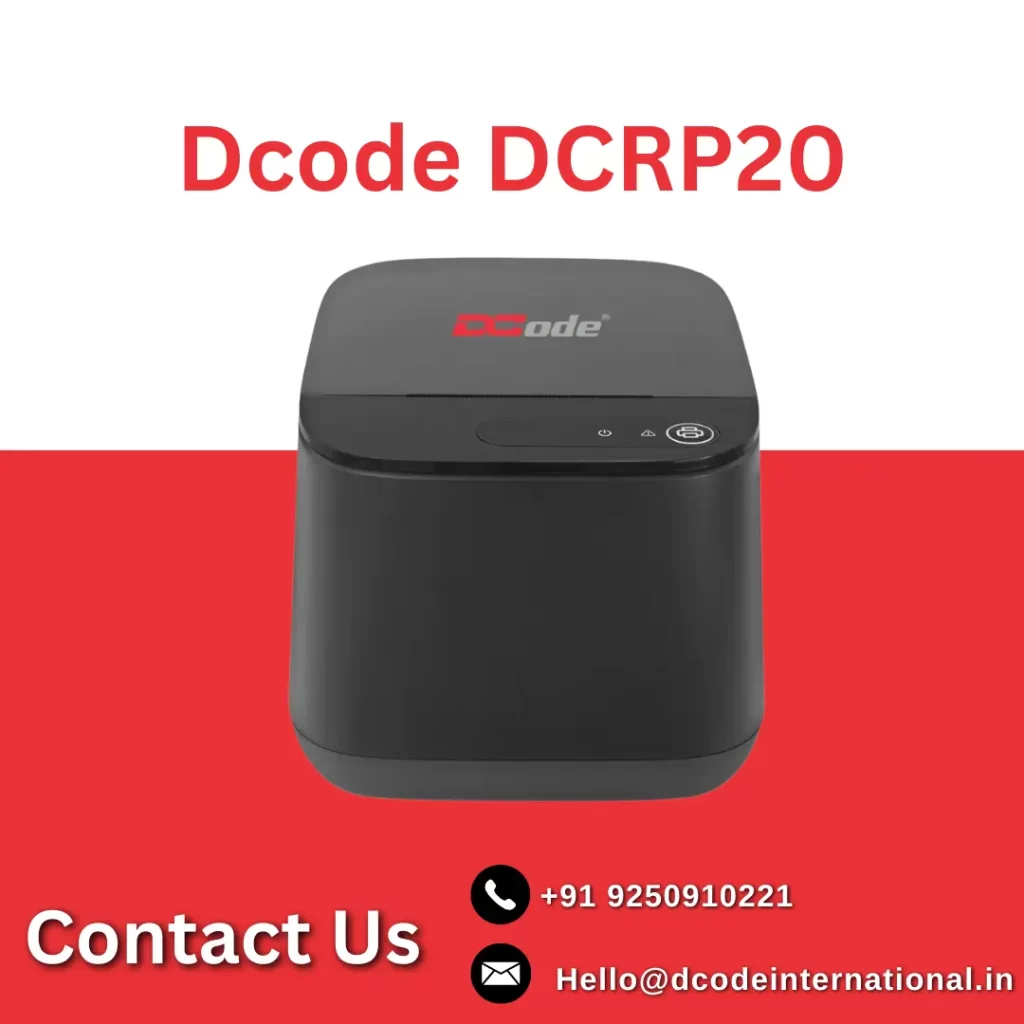
The Dcode DCRP20 is a lightweight, compact thermal receipt printer ideal for small businesses.
It offers a printing speed of 90 mm/s for quick transactions and maintains excellent clarity with a 203 DPI resolution. With USB, LAN, or Bluetooth options, it easily integrates with Android and Windows POS systems. It is a practical choice for pharmacies, cafes, retail counters, and salons.
Dcode DCRP30 – High-Speed & Heavy-Duty
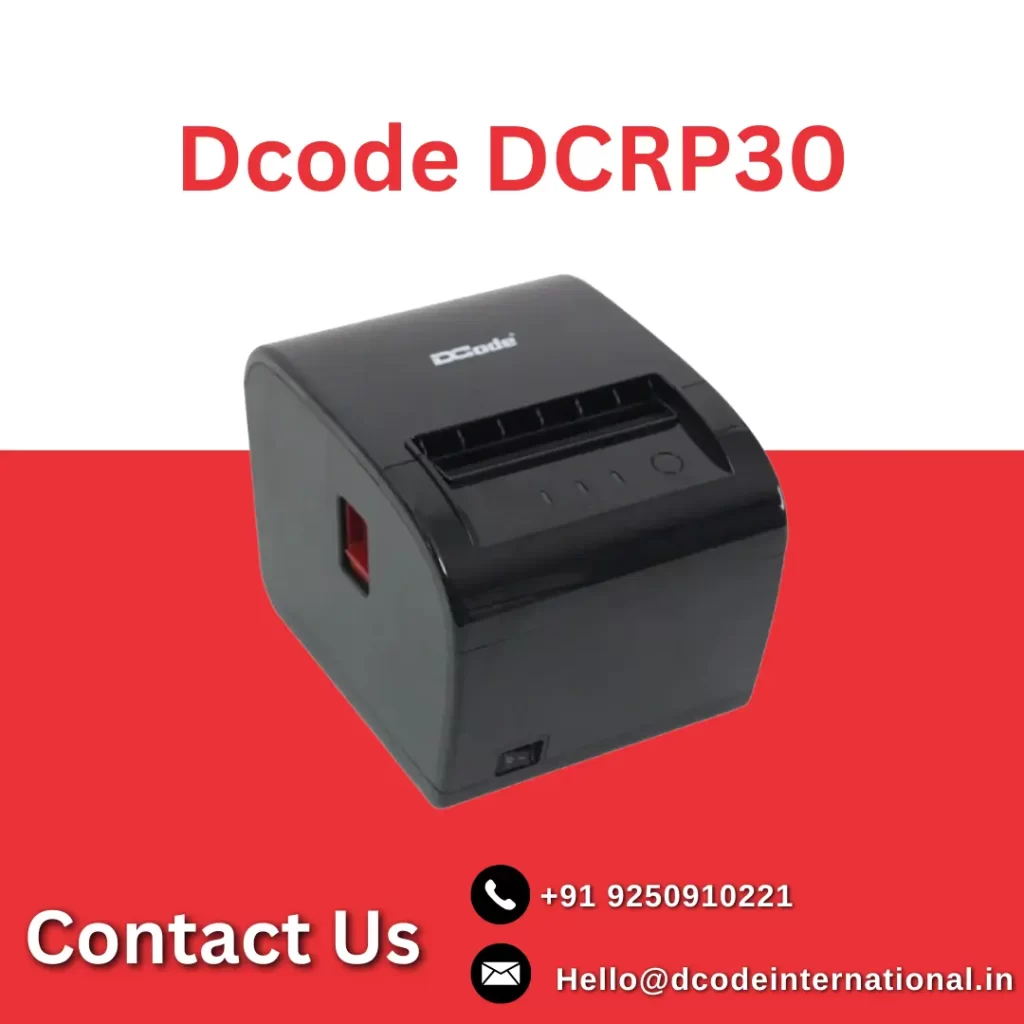
The Dcode DCRP30 is a robust 3-inch thermal printer built for high-volume billing.
With a speed of 230–260 mm/s, sharp 203 dpi output, and USB+LAN or USB+Bluetooth options, it fits perfectly in supermarkets, restaurants, malls, and chain stores. It delivers reliable performance even during peak hours, making it a preferred choice for businesses needing speed and durability.
Mobile Bluetooth Printers
For delivery partners, food trucks, or field billing, portable Bluetooth receipt printers offer flexibility, portability, and battery-powered operation.
Conclusion
Choosing the right receipt printer for POS systems is essential for delivering a smooth customer experience and maintaining efficient billing operations. Whether you are running a small retail store or a large supermarket, a good printer ensures clear receipts, faster transactions, and accurate sales records.
Models like Dcode DCRP20 and Dcode DCRP30 stand out as reliable and easy-to-use options for modern businesses, offering performance, compatibility, and convenience without complexity.
Invest in the right POS receipt printer, and your billing process becomes faster, smoother, and more professional instantly.
FAQs
1. Do thermal printers need ink?
No, they use heat-sensitive thermal paper—no ink or toner required.
2. Are Dcode receipt printers compatible with POS software?
Yes, both DCRP20 and DCRP30 support ESC/POS commands and work with most billing systems.
3. Which is better: USB or Bluetooth receipt printers?
USB is more stable, while Bluetooth is ideal for mobile or wireless setups.
4. How long does a POS receipt printer typically last?
A quality thermal printer lasts 5–7 years with proper maintenance.
5. What paper size is best for retail billing?
Most stores use 80mm (3-inch) paper for professional-looking receipts.